Mu Online Basic Info
Game Screen Information
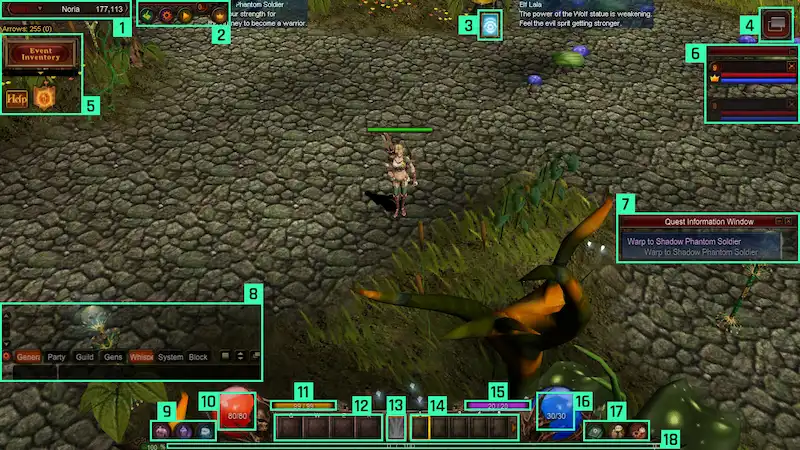
1 - Current channel and channel selector, map you are on and coordinates.
2 - Hunting log, Mu helper and Helper Plus.
3 - Buffs and Switch Scroll.
4 - Switches from Classic Mode - Simple Mode.
5 - Minigames, Event Inventory, Help and Event Notifications.
6 - Party.
7 - Quest Information Window.
8 - Chat.
9 - In-game Shop, Character Information (Stats) and Inventory (Muun Inventory, Normal Inventory and Gremory Case).
10 - Character HP.
11 - Character SD.
12 - Item Slots (Potions).
13 - Skills configurator and current skill in use.
14 - Skill Slots.
15 - Character AG.
16 - Character Mana.
17 - Quests, Community (Friends, Guild, Gens and Group or Guild Matching) and System (Play Guide, Move, Option, Search Private Store and System).
18 - Experience Bars.
Zen

Zen is the most basic currency in Mu Online.
It can be obtained through hunting or by selling items to shops.
This currency can be traded between players.
Ruud

Ruud is a currency used to purchase items and skills from NPC Priest James.
It is a binding currency that cannot be traded individually, and can be obtained through event maps or events.
Event Map: Chaos Castle, Blood Castle, Devil Square, Illusion Temple, Doppelganger, Empire Guardians: Varka.
Event: Dimensional Roulette Event, Mini Game Event, Ranking Event, etc.
You can acquire ruud through the mastery box that you will earn in events.
Chat Functions

General: You can check the general chat window.
Party: You can check the party chat window.
Guild: You can check the guild chat window.
Gens: You can check the gens chat window.
Whisper: You can check the whisper chat window.
System: You can check the system chat window.
Block: You can open the block user window or check the blocked users.
Others: You can adjust the transparency and size of the chat.
Block Chat
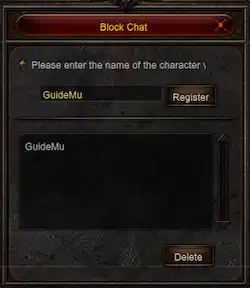
If there is a person you don't want to chat with , you can add the character name to the block list.
Once added to the block list, the chat of the blocked character will no longer be visible.
Block Chat Window
Whisper display ON/OFF
Resizing the chat window (Available only when the chat window is active)
Chat window transparency control and General window ON/OFF
Gens window ON/OFF
General window ON/OFF
Party window ON/OFF
Guild window ON/OFF
Master Skill Tree
Gens Information
Character Information
Command Window
Item Slot 3
Friends
Guild
Open extended warehouse (Available only while the warehouse is open)
Inventory
Gremory Case
Equipment Repair (Available only while inventory is open)
Move Command Window
Party and Guild Matching
Option
Personal Store List
Item Slot 1
Item Slot 4
Open Personal Store (Available only while inventory is open)
Quests
Skill Imprint
Inventory
Item Slot 2
In-game Shop
Muun Inventory
Mu Helper
Skill Enhancement Tree
Hunting Log
Acquire an item from the field
Move all party members
Run all party member helpers
Switch Mode
Help
Block Chat Window
Whisper display ON/OFF
Resizing the chat window (Available only when the chat window is active)
Chat window transparency control and General window ON/OFF
Gens window ON/OFF
General window ON/OFF
Party window ON/OFF
Guild window ON/OFF
Normal skill slot 1
Normal skill slot 2
Normal skill slot 3
Normal skill slot 4
Normal skill slot 5
Normal skill slot 6
Normal skill slot 7
Normal skill slot 8
Normal skill slot 9
Normal skill slot 0
Enlarge Minimap
Reduce Minimap
Low Transparency Minimap
High Transparency Minimap
Chat ON/OFF
System Menu
Screen Capture
Minimap ON/OFF
Mu Helper ON/OFF
Show items dropped in the field ON/OFF
Check Stats
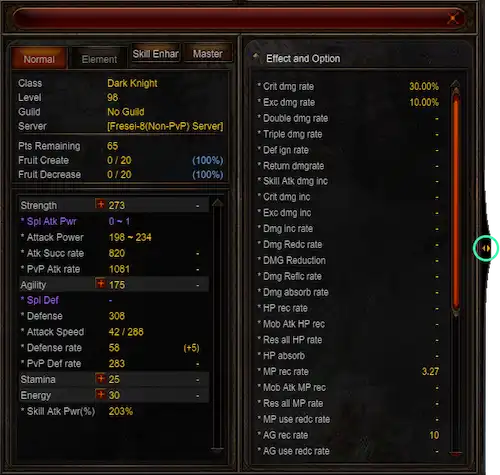
Stat points can be used to increase a character's abilities.
You can grow your character in the direction you want by distributing it to the desired stats such as strength, agility, stamina, energy and Command (Dark Lord Exclusive).
If you press the shortcut key C, you can check the stat points you currently have and the points you have distributed.
If you have more than 1 extra point, the + button is activated on the right of the ability level.
Stats can be increased by the corresponding ability using the + button.
- You can quickly increase stats by pressing the mouse wheel button
Through the button on the right you can expand and collapse the Effect and Option window.
Move Command
All areas of MU Online can be moved on foot , but there is a movement command system that allows you to move to the desired map more conveniently.
It can be used in the movement command information window that is activated by pressing the shortcut key M.
Movement command can be used only when conditions such as limit level and required zen are met.
Areas that can be moved are displayed in white text, and areas that cannot be moved are displayed in red text.
Move command information window
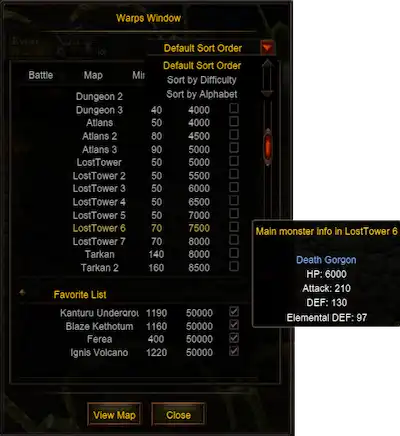
Sort Maps
Difficulty sorting and alphabetical sorting functions are available in the movement command information window.
Sort by Difficulty: When sorting difficulty, the map list is sorted based on the general monster data in the hunting ground field. Monsters located at the bottom have a higher difficulty level.
Sort by Alphabet: Sorts the list of maps in alphabetical order by name.
Monster information
When you mouse over the hunting ground list in the movement command window, information about the main monsters in the selected hunting ground is displayed.
If you have a monster soul converter, you can see the information when you mouse over a map where you can collect souls.
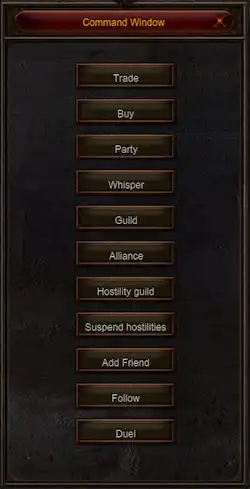
Command System
You can use the command window to conveniently access Mu Online Community content.
Pressing the hotkey D activates the command window.
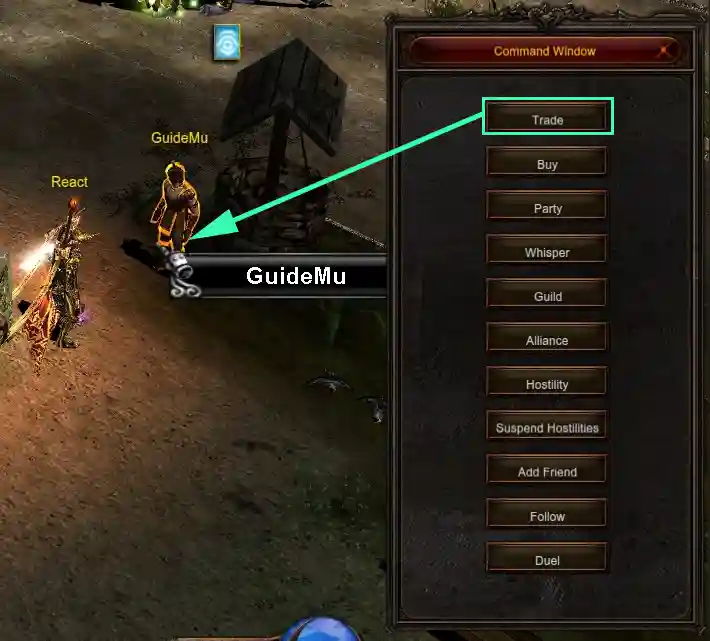
Using Command
Press the desired button in the command window, annd then move the mouse to the target and left-click.
How to check Hunting Logs

Hunting log is a function that allows you to check hunting log using Mu Helper.
You can check it by using the shortcut END key and the 'Map' on the top left in-game.
Hunting Log Table
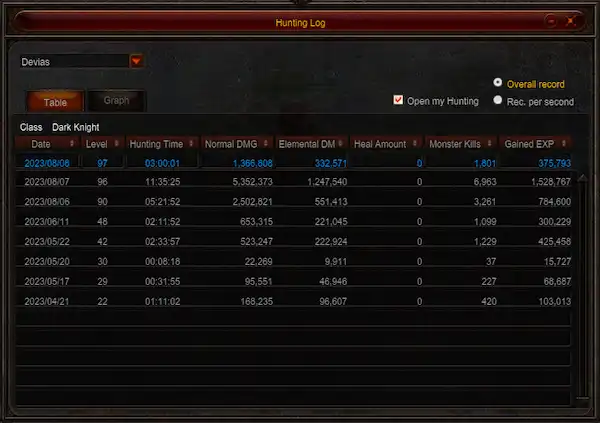
It is a hunting log that can be checked in tabular format.
If you open the hunting log, you can check the entire log data for each map.
You can check various information such as date, level, hunting time, damage, monster kills and experience.
The log in blue color is the log of today's date, and the log below it is the log of the past date.
- Hunting logs are stored by date, and you can check up to 60 days of logs.
Hunting Log Graph
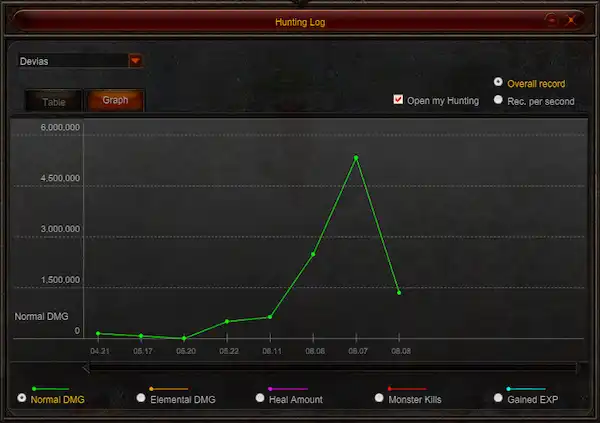
It is a hunting log that can be checked in a graph format.
The X-axis of the graph is the date, and the Y-axis is the value (general, property damage, amount of treatment, number of monsters killed, experience gained).
You can check various information such as date, level, hunting time, damage, monster kills and experience.
The log in blue color is the log of today's date, and the log below it is the log of the past date.
- Hunting logs are stored by date, and you can check up to 60 days of logs.
Disclosure of Hunting Logs

If you reveal your hunting log window, other characters can open your hunting log window.
It is revealed when you click the 'Open my hunting log window' checkbox in the hunting log window.
Check other player Hunting logs

You can check the hunting log windows of other players who have checked Open My Hunting Log.
Alt + right-click on another character and click the View Hunting Log item in the menu that appears.